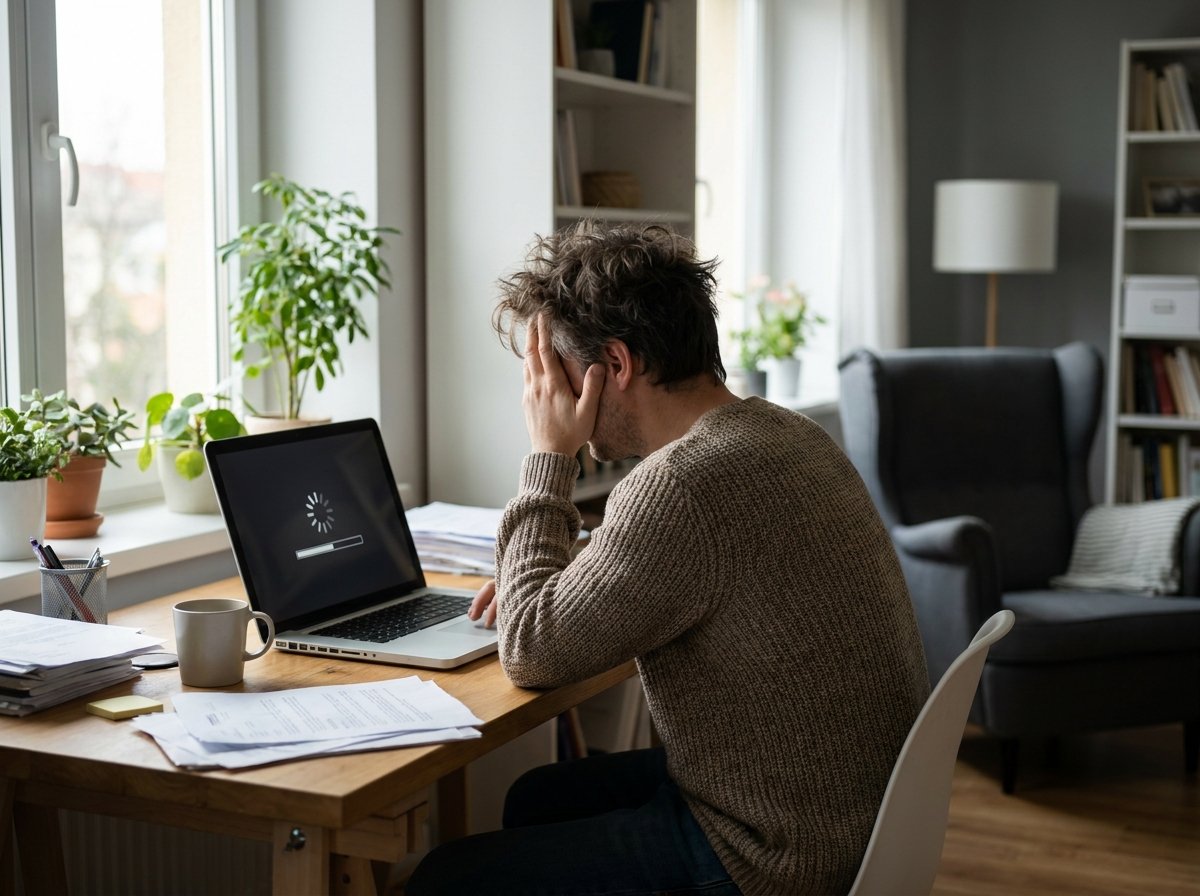
A laptop that takes ninety seconds to open a browser wasn't always that way. Something changed, and in most cases it's fixable in the time it takes to make a cup of tea. If you're dealing with a slow laptop and don't want to pay someone to fix it, the good news is that the vast majority of slowdowns come from a handful of predictable causes, and each one has a quick fix.
Start by figuring out what's actually slow
Before touching any settings, open Task Manager on Windows (Ctrl, Shift, Esc) or Activity Monitor on Mac. Look at what's eating your CPU, memory, and disk usage right now. If one program is pinned near 100 percent, that's your culprit, and you can skip straight to dealing with it. If everything looks calm but the laptop still crawls, the problem is likely startup bloat or a nearly full hard drive, both of which are covered below.
Disable the programs running in the background
Most people are surprised by how many applications quietly launch every time their laptop boots. Each one takes a slice of memory and processing power before you've even opened anything yourself. On Windows, go to Task Manager. Click the Startup tab, then disable anything you don't need running immediately, things like cloud backup tools, chat apps, or software updaters. On a Mac, this lives in System Settings under General, then Login Items. Trimming startup programs is often the fastest way to fix a slow laptop because it directly reduces what your machine has to load before it's usable.
Clear out the clutter your browser has piled up
Browsers are frequently the source of sluggishness, especially if you tend to keep dozens of tabs open or have accumulated a long list of extensions over the years. Each open tab consumes memory even when you're not looking at it, and background extensions can run scripts constantly. Close tabs you're not using, and go through your extensions list to remove anything you installed once and forgot about. Clearing your browser's cache and cookies can also help, particularly if pages have started loading slowly or acting strangely.
Check how full your storage actually is
A drive or SSD that's more than about 85 to 90 percent full will noticeably slow down your entire system, not just file transfers. Your operating system needs breathing room to manage files and virtual memory. Go into your storage settings. See what's taking up space. Old downloads, duplicate photos, and installers you never deleted are common offenders. Windows has a built-in Storage Sense tool, and Mac has a Manage Storage option, both of which show exactly what's using space so you're not guessing.
Watch out for heat, not just software
This one gets skipped in most slow laptop guides, but thermal throttling is a real and common cause of poor performance, especially on laptops that are a year or two old. When internal components overheat, the processor deliberately slows itself down to prevent damage. Dust buildup in the vents and fans is usually to blame. If your laptop feels hot to the touch, or the fan is constantly running loudly, try running it on a hard, flat surface instead of a bed or couch, and consider having the vents cleaned out with compressed air. This single issue explains a lot of slowness that software fixes never touch.
Run a malware scan, even if you think you're careful
Malware and unwanted background processes are a less common cause than they used to be, but they still happen, and they're worth ruling out. Run a scan using your operating system's built-in protection, Windows Security or macOS's XProtect, or a reputable third-party scanner. Malware often disguises itself as a background process, so this step matters even if nothing looks obviously wrong.
Consider whether it's a hardware limitation, not a slowdown
If you've gone through every step above and the laptop is still slow, especially an older machine still running a traditional hard drive instead of a solid state drive, you may be dealing with a hardware limitation rather than a fixable issue. Upgrading to an SSD is one of the most noticeable performance improvements you can make on an older laptop, often more impactful than adding RAM, and it doesn't require a technician if you're comfortable following an online walkthrough.
Slow laptops aren't broken, they're just carrying more startup weight, browser clutter, and dust than they were designed to handle. Working through these steps in order, starting with diagnosis and ending with the less obvious causes like heat, will resolve the problem for the overwhelming majority of laptops without ever needing professional help. If you've tried all of this and the slowdown persists, that's usually your signal that the hardware itself has reached its limit.
Frequently Asked Questions
Why did my laptop suddenly get slow after a Windows update?
Updates sometimes trigger background indexing or driver reinstallation that temporarily spikes CPU and disk usage. This usually settles down within a day or two. You can speed it up by checking Task Manager for any process using unusually high resources.
Does closing browser tabs really make a difference?
Yes, particularly if you regularly keep 15 or more tabs open, since each one holds memory in reserve even when idle. Closing tabs and disabling unnecessary extensions is one of the quickest performance wins available.
Is it worth buying RAM to fix a slow laptop?
It depends on what Task Manager shows. If your memory usage is consistently near 100 percent during normal use, more RAM will help significantly, but if the bottleneck is your storage drive or CPU, added RAM won't solve much.
Can dust actually slow down a laptop?
Yes, dust buildup restricts airflow and causes internal components to overheat, which triggers thermal throttling and deliberately reduced performance. Cleaning the vents with compressed air every six months or so can prevent this entirely.
Should I use a registry cleaner or PC optimizer tool?
Most modern registry cleaners provide little real benefit, and in some cases can cause instability if they remove entries the system still needs. The manual steps in this article address the causes of slowdown more reliably and safely.