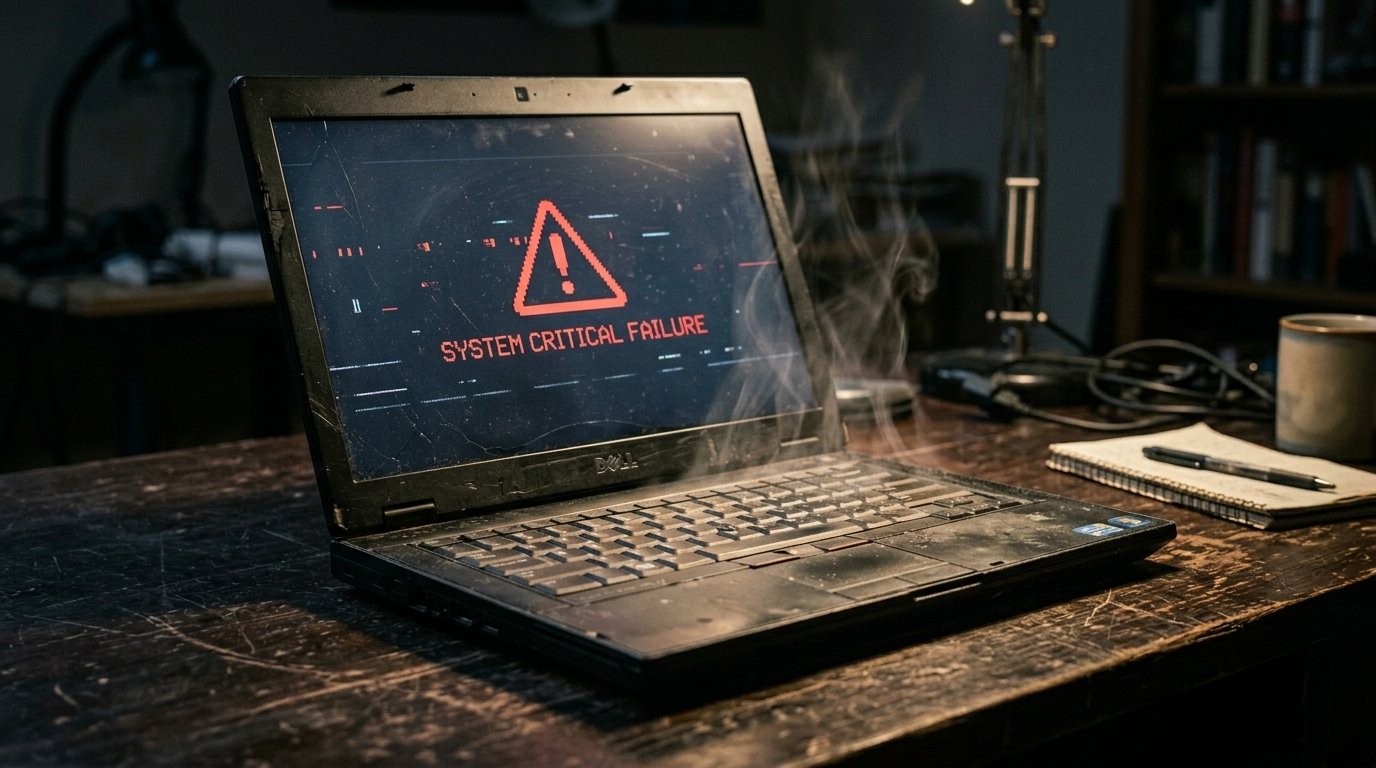
Most people do not replace their laptop until it completely stops turning on. By that point, recovering your data costs more than the machine ever did.
Your laptop does not die without warning. It whispers first. Sluggish boot times, a fan that sounds like a helicopter, a battery that surrenders after 40 minutes, these are not random quirks. They are distress signals. Learn to read them now, and you can act before you lose everything.
Your Laptop Takes Forever to Boot
A machine that once launched in 20 seconds but now crawls through startup for two or three minutes is telling you something specific. This almost always points to a failing hard drive, degraded RAM, or a battery issue triggering thermal throttling. It is not just aging. It is hardware in decline.
What to do: Run a disk health check immediately. On Windows, use CrystalDiskInfo. On macOS, check Disk Utility. If the drive reports errors, back up your data that same day.
The Fan Runs Loud and Never Stops
Your cooling system exists for one reason: to protect internal components from heat. When the fan runs constantly at full speed, it means the processor is working overtime and the laptop cannot cool itself fast enough.
Ignoring a loud, persistent fan is one of the fastest ways to kill a motherboard. Dust buildup, dried thermal paste, and blocked vents are the usual culprits. Clean the vents every few months and consider professional thermal paste reapplication if the noise does not stop.
Frequent Freezing, Crashing, or the Blue Screen of Death
Random freezes mean the laptop is struggling to access or process data. When your cursor stops responding and the screen locks up, the machine is either waiting on a failing hard drive or dealing with RAM that can no longer keep up.
The Blue Screen of Death is not a minor glitch. It signals damaged hardware or corrupted drivers. If you are seeing it more than once a month, a diagnostic is not optional. Run the Windows Memory Diagnostic tool to test RAM, and check your drive for errors before the next crash takes your files with it.
Battery Life Has Collapsed
A healthy laptop battery holds a charge for several hours. When a fully charged battery dies within 30 to 60 minutes, the battery cells have degraded past the point of normal use. This is expected after 300 to 500 charge cycles, but a sharp sudden drop is a warning worth acting on.
A swollen battery is a different situation entirely. It is a fire hazard. Check the underside of your laptop. If the casing is bulging, or your trackpad seems to be lifting from below, stop using the machine and have the battery replaced immediately.
Strange Clicking or Grinding Sounds
A clicking or grinding sound coming from inside the laptop almost always originates from a mechanical hard drive in the process of failing. This sound means the read/write heads are physically struggling to function.
Once a hard drive starts clicking, data loss is not a possibility. It is a schedule. Back up everything immediately, then replace the drive. An SSD upgrade at this stage can give a dying laptop several more years of useful life.
Screen Flickering, Lines, or Sudden Blackouts
A screen that flickers, displays horizontal or vertical lines, or goes black without warning points to a failing display panel, a loose ribbon cable, or a GPU that is starting to give out. Since laptop graphics cards are often integrated into the motherboard, a failing GPU can signal broader hardware deterioration.
If the display problems appear during demanding tasks like video or gaming, suspect the GPU first. If they appear even on a simple browser window, the screen itself or the cable connecting it is the more likely cause.
Ports and Peripherals Stop Working Reliably
USB ports that disconnect randomly, a charging port that only works at a specific angle, or a keyboard with keys that stop registering are signs of physical wear and internal connector damage. These faults tend to multiply over time.
A single failed port can sometimes be repaired cheaply. Multiple failing ports at once usually indicate motherboard stress. At that stage, the cost of repair often approaches the cost of a replacement.
Conclusion
A dying laptop gives you time to act, but only if you pay attention. Slow startups, unusual sounds, a battery that drains in under an hour, and frequent crashes are not inconveniences to work around. They are deadlines. Back up your data today, run a hardware diagnostic this week, and make an honest assessment of repair costs versus replacement value. The worst outcome is not a dead laptop. It is a dead laptop that took years of unsaved work with it.
Frequently Asked Questions
1. How long does a laptop typically last before it starts dying?
Most laptops last between 3 and 5 years with average use. High-quality business or premium laptops can last 7 to 10 years with proper maintenance.
2. Can I fix a dying laptop myself or do I need a professional?
Basic fixes like cleaning vents, replacing a battery, or upgrading to an SSD are manageable for most users. Motherboard or GPU issues require professional diagnosis and repair.
3. Is a slow laptop always a sign it is dying?
Not always. Slowness can be caused by too many startup programs, malware, or a full hard drive. Run a diagnostic before assuming hardware failure.
4. What should I do first when I notice signs my laptop is dying?
Back up all important data immediately. Then run built-in diagnostic tools to identify whether the issue is the hard drive, RAM, or battery.
5. Is it worth repairing a dying laptop or should I replace it?
If the laptop is under 3 years old and the repair cost is below 50 percent of the replacement cost, repair is usually worth it. For older machines with multiple failing components, replacement is the smarter investment.